
지피티활용능력1급
24.02.02 동계 모각코 5회차 결과 본문
Column(
  children: [
    Row(
      mainAxisAlignment: MainAxisAlignment.spaceBetween,
      children: [
        Container(
          width: 80,
          height: 80,
          decoration: BoxDecoration(
            shape: BoxShape.circle,
            image: DecorationImage(image: AssetImage('assets/squat.gif')),
          ),
        ),
        Container(
          width:200,
          child: Text('1.스쿼트', style: TextStyle(fontSize: 20)),
        ),
        Text('05:30', style: TextStyle(fontSize: 20, color: Colors.blue))
      ],
    ),
    Row(
      mainAxisAlignment: MainAxisAlignment.spaceBetween,
      children: [
        Container(
          width: 80,
          height: 80,
          decoration: BoxDecoration(
            shape: BoxShape.circle,
            image: DecorationImage(image: AssetImage('assets/mountain_climber.gif')),
          ),
        ),
        Container(
          width:200,
          child: Text('2.마운틴클림버', style: TextStyle(fontSize: 20)),
        ),
        Text('25:30', style: TextStyle(fontSize: 20, color: Colors.blue))
      ],
    ),
    Row(
      mainAxisAlignment: MainAxisAlignment.spaceBetween,
      children: [
        Container(
          width: 80,
          height: 80,
          decoration: BoxDecoration(
            shape: BoxShape.circle,
            image: DecorationImage(image: AssetImage('assets/benchpress.gif')),
          ),
        ),
        Container(
          width:200,
          child: Text('3.벤치프레스', style: TextStyle(fontSize: 20)),
        ),
        Text('12:30', style: TextStyle(fontSize: 20, color: Colors.blue))
      ],
    )
  ],
),
이런식으로 하나하나 다 하면 몇백개의 요소들을 처리하는 건 매우 어렵다.
그래서 리스트와 클래스를 이용해야됨
데이터를 구조화하기에는 Class가 적합하다.
class는 연관성이있는 data를 하나의 구조를 묶을 수 있다.
class Workout{
  String name;
  int minutes;
  String imageName;
  String audioName;
  int kcal;
  Workout({
    required this.name,
    required this.minutes,
    required this.imageName,
    required this.audioName,
    required this.kcal
  });
}
WorkoutListPage에서 Workout class를 사용하도록 workouts 변수를 정의
Workout class를 활용하기 위해 필요한 import를 같이한다.
import 'workout.dart';
List<Workout> workouts = [
  Workout(name: '스쿼트', minutes: 30, imageName: 'squat.gif', audioName: 'squat.mp3',kcal: 200),
  Workout(name: '사이드런지', minutes: 20, imageName: 'side_lunge.gif', audioName: 'side_lunge.mp3',kcal: 100),
  Workout(name: '푸쉬업', minutes: 15, imageName: 'pushup.gif', audioName: 'pushup.mp3',kcal: 100),
  Workout(name: '마운틴클림버', minutes: 15, imageName: 'mountain_climber.gif', audioName: 'mountain_climber.mp3',kcal: 50),
  Workout(name: '런지', minutes: 20, imageName: 'lunge.gif', audioName: 'lunge.mp3',kcal: 100),
  Workout(name: '덤벨컬', minutes: 40, imageName: 'dumbell_curl.gif', audioName: 'dumbell_curl.mp3',kcal: 200),
  Workout(name: '덩키킥', minutes: 30, imageName: 'donkey_kick.gif', audioName: 'donkey_kick.mp3',kcal: 50),
  Workout(name: '친업', minutes: 25, imageName: 'chinup.gif', audioName: 'chinup.mp3',kcal: 300),
  Workout(name: '벤치프레스', minutes: 1, imageName: 'benchpress.gif', audioName: 'benchpress.mp3',kcal: 250),
];
기존의 workoutName,workoutImage,workoutMinutes 변수를 workouts 로 대체
Row Widget 구성을 getWorkouList() method에서 담당하므로 해당 method만 수정하면 됨.
List<Row> getWorkoutList(){
  List<Row> workoutListRow=[];
  for(var i=0;i<workouts.length;i++){
    var name=workouts[i].name;
    var image=workouts[i].imageName;
    var minutes=workouts[i].minutes;
    workoutListRow.add(
      . . . //code 줄임 표시
  }
  return workoutListRow;
}
지금까지 우리는 click 기능을 button을 이용해 구현해왔다.
Button Widget은 Gesture를 처리할 수 있는 기능을 포함하고 있었는데 Row Widget은 Gesture 제어기능이 없다.
GestureDetector Widget을 이용하면 tap gesture뿐만 아니라 다음과 같은 다양한 gesture에대한 제어가 가능
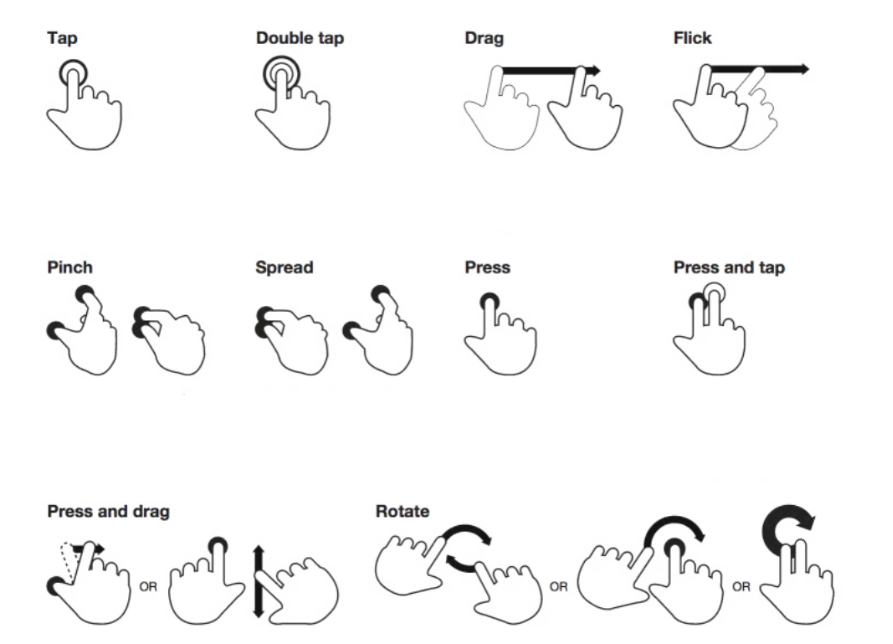
GestureDetector Widget을 Row Widget에 적용해보겠다.
Row widget을 GestureDetector Widget으로 wrap한다.
GestureDetector Widget에서 click action 을 담당하는 속성은 onTap
onTap 속성을 정의
아래는 전체코드다
import 'package:flutter/material.dart';

import 'workout.dart';

class WorkoutListPage extends StatelessWidget {
  WorkoutListPage({super.key});

  List<Workout> workouts = [
    Workout(name: '스쿼트', minutes: 30, imageName: 'squat.gif', audioName: 'squat.mp3',kcal: 200),
    Workout(name: '사이드런지', minutes: 20, imageName: 'side_lunge.gif', audioName: 'side_lunge.mp3',kcal: 100),
    Workout(name: '푸쉬업', minutes: 15, imageName: 'pushup.gif', audioName: 'pushup.mp3',kcal: 100),
    Workout(name: '마운틴클림버', minutes: 15, imageName: 'mountain_climber.gif', audioName: 'mountain_climber.mp3',kcal: 50),
    Workout(name: '런지', minutes: 20, imageName: 'lunge.gif', audioName: 'lunge.mp3',kcal: 100),
    Workout(name: '덤벨컬', minutes: 40, imageName: 'dumbell_curl.gif', audioName: 'dumbell_curl.mp3',kcal: 200),
    Workout(name: '덩키킥', minutes: 30, imageName: 'donkey_kick.gif', audioName: 'donkey_kick.mp3',kcal: 50),
    Workout(name: '친업', minutes: 25, imageName: 'chinup.gif', audioName: 'chinup.mp3',kcal: 300),
    Workout(name: '벤치프레스', minutes: 1, imageName: 'benchpress.gif', audioName: 'benchpress.mp3',kcal: 250),
  ];


  List<GestureDetector> getWorkoutList(){
    List<GestureDetector> workoutListRow=[];
    for(var i=0;i<workouts.length;i++){
      var name=workouts[i].name;
      var image=workouts[i].imageName;
      var minutes=workouts[i].minutes;
      workoutListRow.add(
        GestureDetector(
          onTap: (){
            //route code here
          },
          child: Row(
            children: [
              Container(
                margin: EdgeInsets.all(10),
                width: 80,
                height: 80,
                decoration: BoxDecoration(
                  shape: BoxShape.circle,
                  image: DecorationImage(image: AssetImage('assets/$image')),
                ),
              ),
              Expanded(
                child: Text('${i+1}.$name', style: TextStyle(fontSize: 20)),
              ),
              Padding(
                padding: const EdgeInsets.only(right:10.0),
                child: Text('$minutes', style: TextStyle(fontSize: 20, color: Colors.blue)),
              )
            ],
          ),
        ),
      );
    }
    return workoutListRow;
  }

  @override
  Widget build(BuildContext context) {

    return Scaffold(
      appBar: AppBar(
        title: Text('WorkoutList'),
      ),
      body: SingleChildScrollView(
        child: Column(
          children:getWorkoutList(),
        ),
      ),
    );
  }
}