
지피티활용능력1급
24.01.31 동계 모각코 4회차 결과 본문
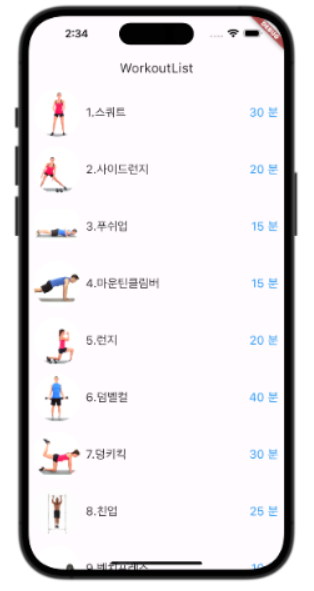
위와 같은 화면을 구성해볼것이다.
//filename: main.dart
import 'package:flutter/material.dart';
import 'landing_page.dart';
import 'workout_list_page.dart';

void main() {
  runApp(const MyApp());
}

class MyApp extends StatelessWidget {
  const MyApp({super.key});
  @override
  Widget build(BuildContext context) {
    return MaterialApp(
      title: 'Workout Tracker',
      home:WorkoutListPage(),
      //home: LandingPage(),
    );
  }
}
Scaffold(
  appBar: AppBar(
    title: Text('WorkoutList'),
  ),
);
상단 타이틀 노출
Row(
  children: [
    Container(
      width: 80,
      height: 80,
      decoration: BoxDecoration(
        shape: BoxShape.circle,
        image: DecorationImage(image: AssetImage('assets/squat.gif')),
      ),
    ),
    Text('1.스쿼트',style: TextStyle(fontSize: 20)),
    Text('05:30',style: TextStyle(fontSize: 20,color: Colors.blue))
  ],
)
결과화면
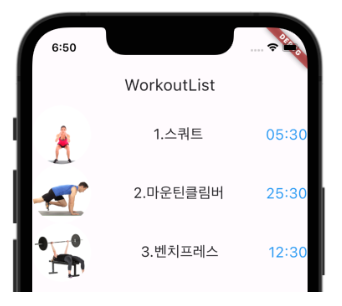
mainAxisAlignment: MainAxisAlignment.spaceBetween이걸 이용해 위젯들을 벌려준다

운동 세개를 띄워보겠다.
Column(
  children: [
    Row(
      mainAxisAlignment: MainAxisAlignment.spaceBetween,
      children: [
        Container(
          width: 80,
          height: 80,
          decoration: BoxDecoration(
            shape: BoxShape.circle,
            image: DecorationImage(image: AssetImage('assets/squat.gif')),
          ),
        ),
        Container(
          width:200,
          child: Text('1.스쿼트', style: TextStyle(fontSize: 20)),
        ),
        Text('05:30', style: TextStyle(fontSize: 20, color: Colors.blue))
      ],
    ),
    Row(
      mainAxisAlignment: MainAxisAlignment.spaceBetween,
      children: [
        Container(
          width: 80,
          height: 80,
          decoration: BoxDecoration(
            shape: BoxShape.circle,
            image: DecorationImage(image: AssetImage('assets/mountain_climber.gif')),
          ),
        ),
        Container(
          width:200,
          child: Text('2.마운틴클림버', style: TextStyle(fontSize: 20)),
        ),
        Text('25:30', style: TextStyle(fontSize: 20, color: Colors.blue))
      ],
    ),
    Row(
      mainAxisAlignment: MainAxisAlignment.spaceBetween,
      children: [
        Container(
          width: 80,
          height: 80,
          decoration: BoxDecoration(
            shape: BoxShape.circle,
            image: DecorationImage(image: AssetImage('assets/benchpress.gif')),
          ),
        ),
        Container(
          width:200,
          child: Text('3.벤치프레스', style: TextStyle(fontSize: 20)),
        ),
        Text('12:30', style: TextStyle(fontSize: 20, color: Colors.blue))
      ],
    )
  ],
),
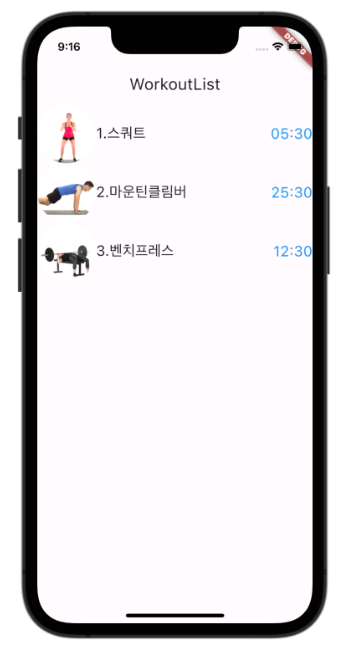
여기서 Expanded Widget을 통해 정렬을 좀 더 깔끔하게 해보겠다.
운동이름이 들어가는 Text widget을 Expanded로 wrap 하면 자연스럽게 이미지 영역과, 운동목표시간 Text영역을 제외한 전체 영역을 Expanded가 차지한다.
운동명을 표현하는 Text Widget은 Expanded widget 내에서 왼쪽 정렬을 함으로써 세로 정렬을 일치시킨다.
.
Container widget을 삭제하고 Text Widget을 Expanded Widget으로 wrap 한다.
Column(
  children: [
    Row(
      children: [
        Container(
          width: 80,
          height: 80,
          decoration: BoxDecoration(
            shape: BoxShape.circle,
            image: DecorationImage(image: AssetImage('assets/squat.gif')),
          ),
        ),
        Expanded(
          child: Text('1.스쿼트', style: TextStyle(fontSize: 20)),
        ),
        Text('05:30', style: TextStyle(fontSize: 20, color: Colors.blue))
      ],
    ),
    Row(
      children: [
        Container(
          width: 80,
          height: 80,
          decoration: BoxDecoration(
            shape: BoxShape.circle,
            image: DecorationImage(image: AssetImage('assets/mountain_climber.gif')),
          ),
        ),
        Expanded(
          child: Text('2.마운틴클림버', style: TextStyle(fontSize: 20)),
        ),
        Text('25:30', style: TextStyle(fontSize: 20, color: Colors.blue))
      ],
    ),
    Row(
      children: [
        Container(
          width: 80,
          height: 80,
          decoration: BoxDecoration(
            shape: BoxShape.circle,
            image: DecorationImage(image: AssetImage('assets/benchpress.gif')),
          ),
        ),
        Expanded(
          child: Text('3.벤치프레스', style: TextStyle(fontSize: 20)),
        ),
        Text('12:30', style: TextStyle(fontSize: 20, color: Colors.blue))
      ],
    )
  ],
),
결과화면